
Share the work, not your password.
A cashier who only takes QR payments, a helper who only scans tickets, a manager who runs the forms. Each with their own login and only the menus they need.
Trusted by these companies












































What you get
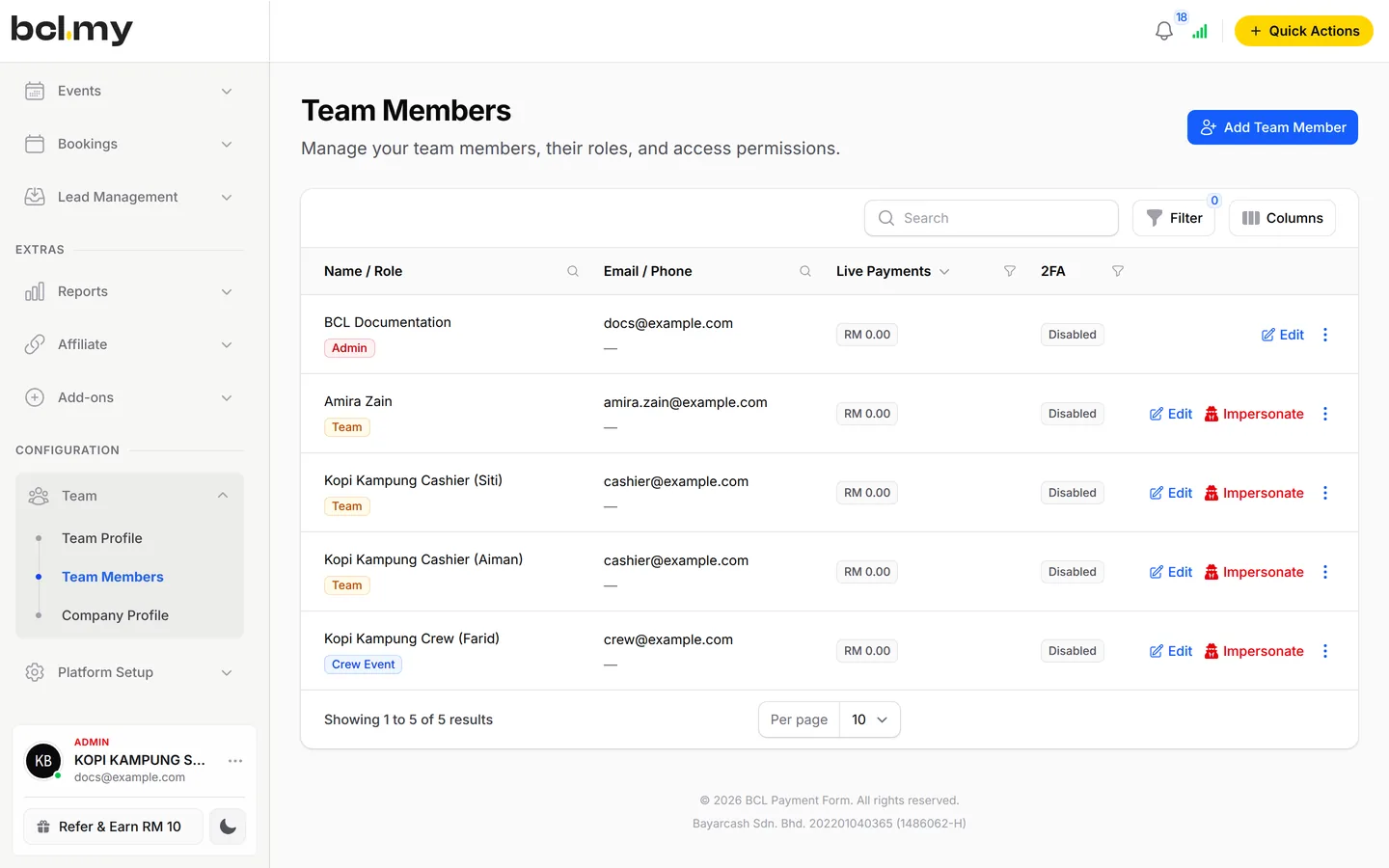
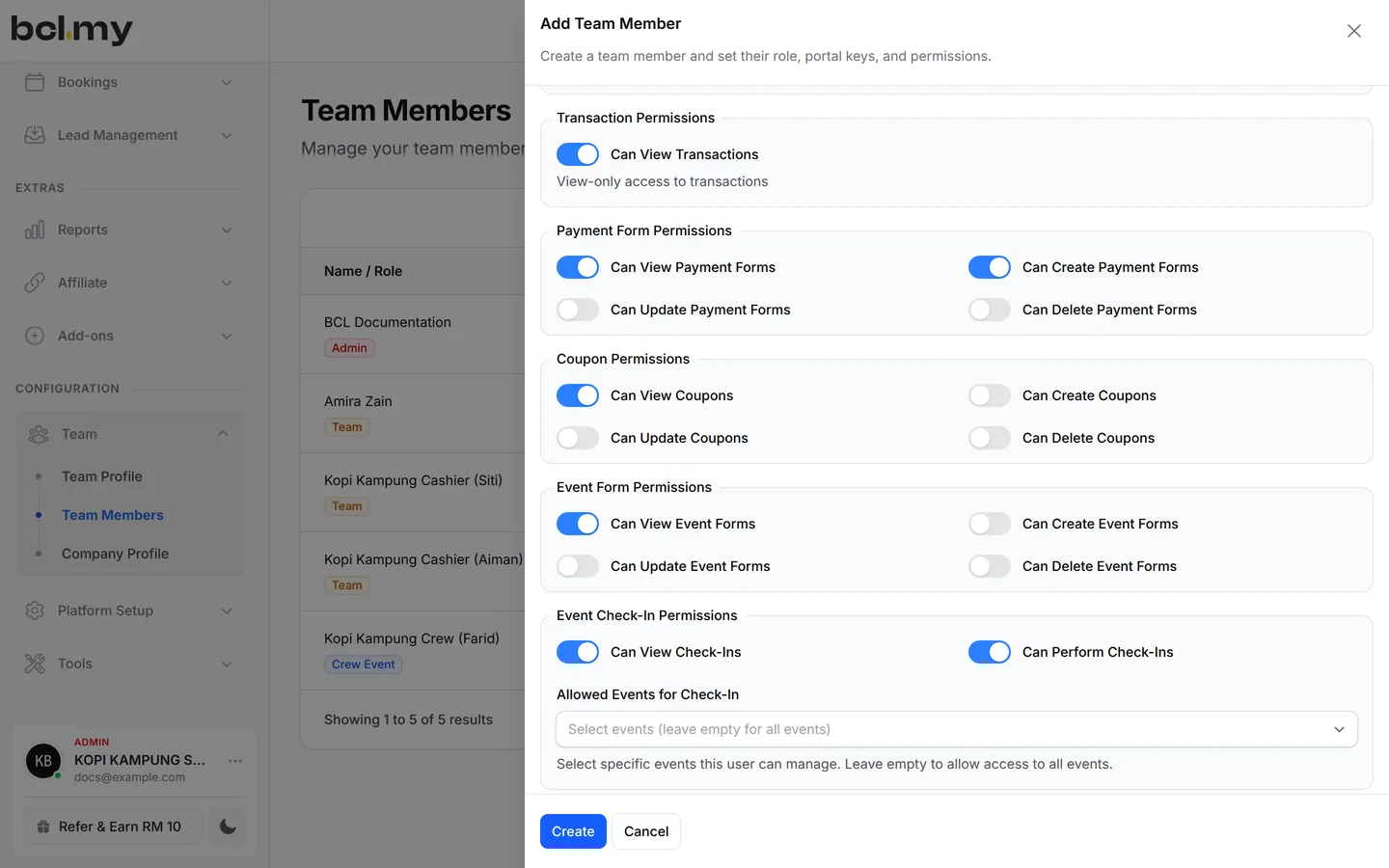
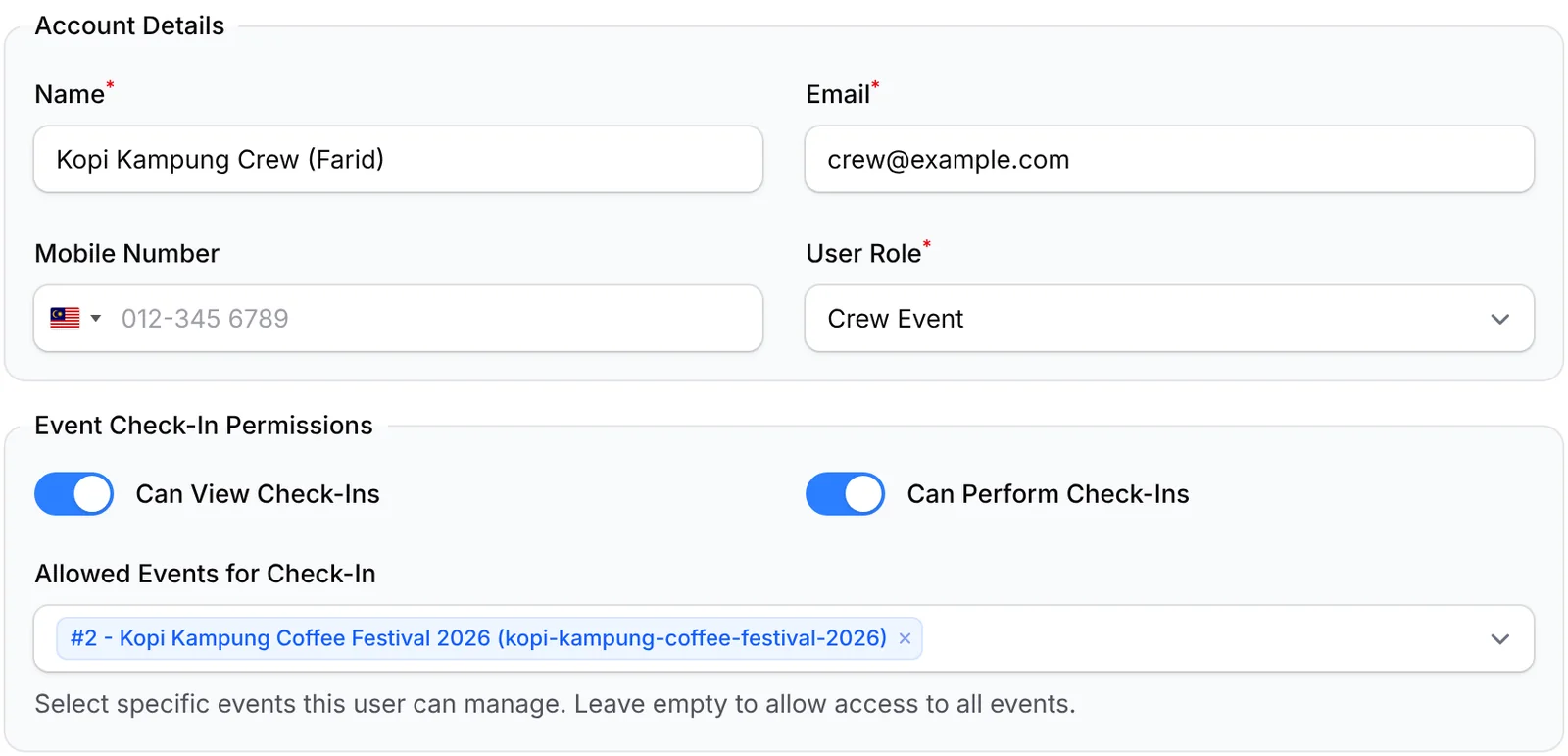
Separate logins, switch-on permissions, quick role picks and event-only door crew, shown here.
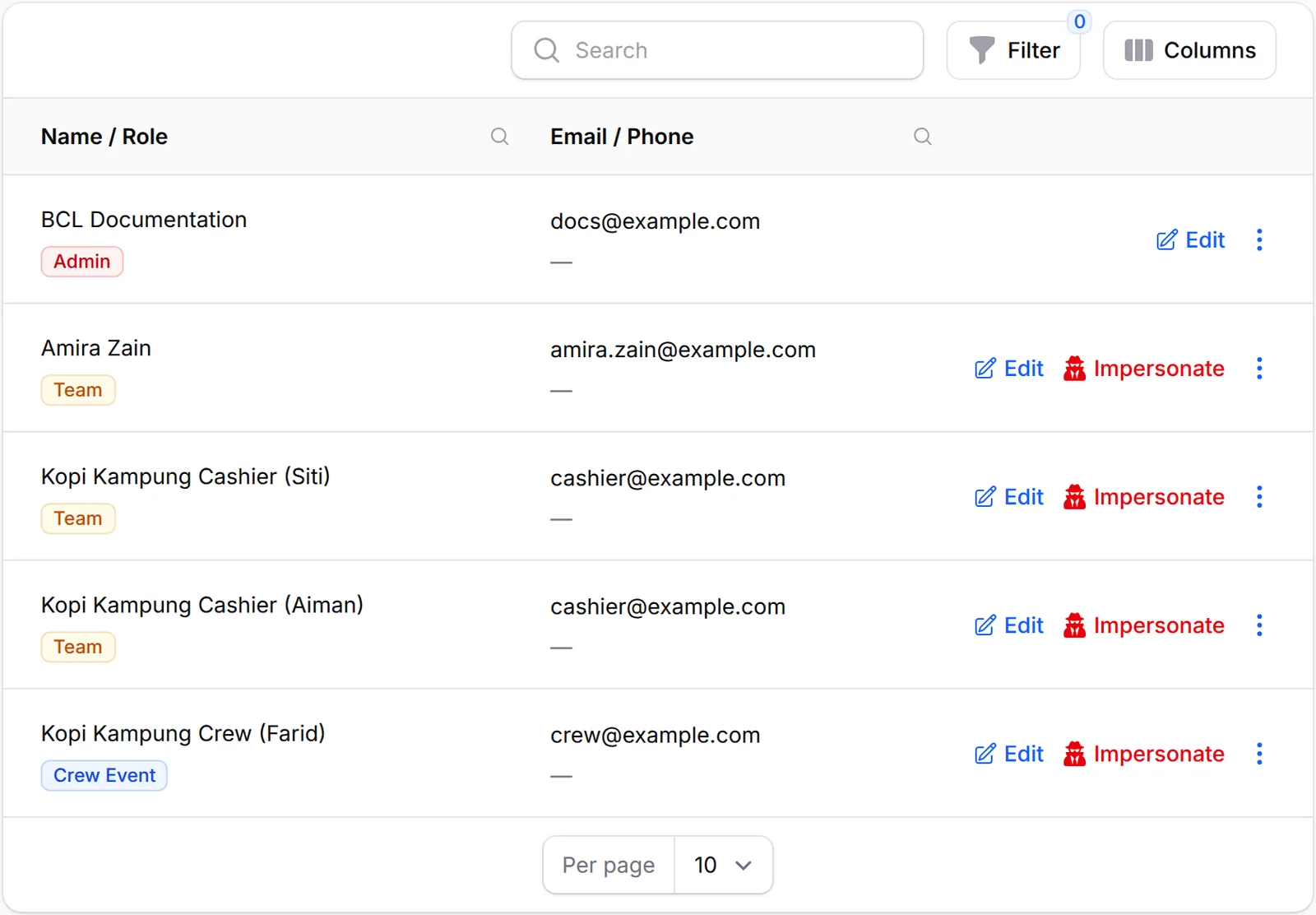
Everyone gets their own login
Add each staff member with their own email and password, as Admin, Team or Crew Event. Nobody shares your login, and every sale or check-in is recorded against the person who made it. The 2FA column shows who has turned on two-factor sign-in, so you can nudge the rest.
Switch on only what they need
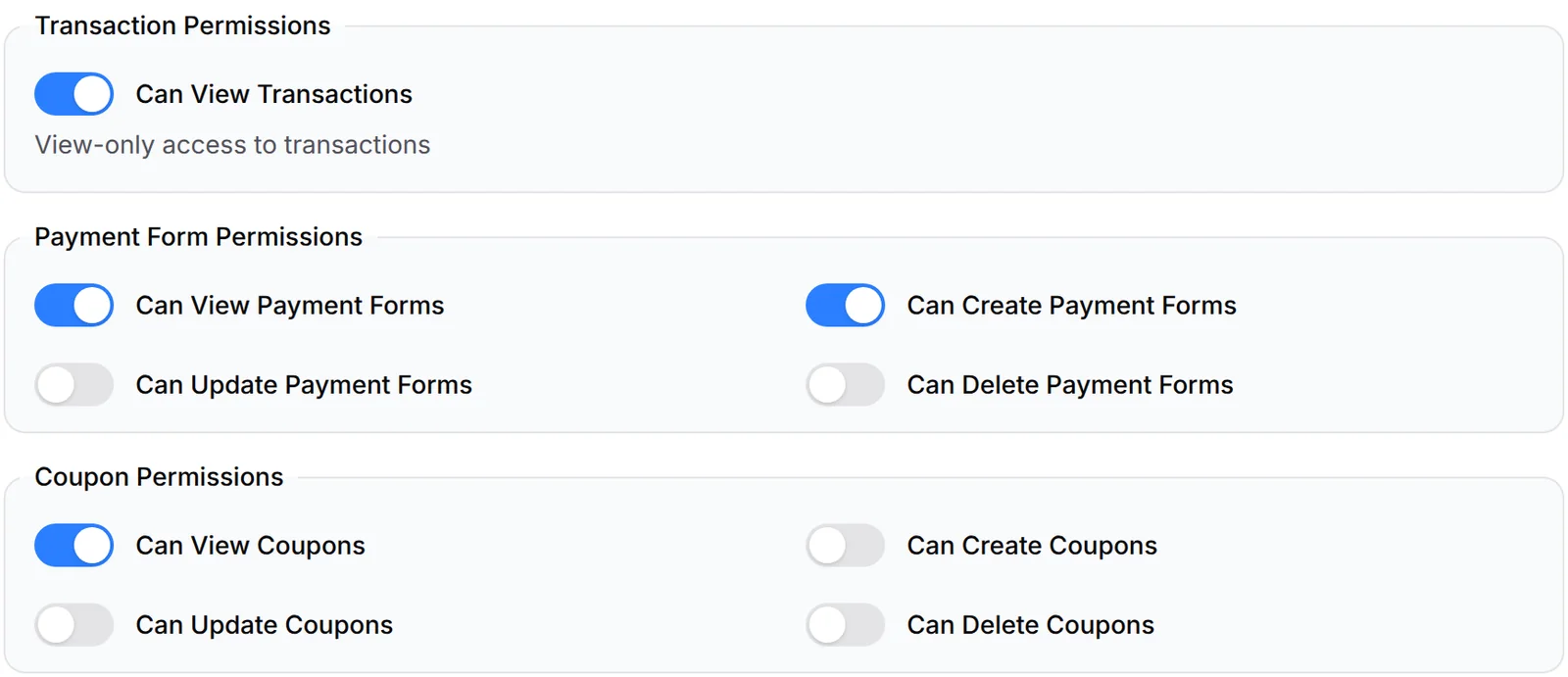
With the Team role, each area has its own switches, such as Can View Payment Forms, Can Create Payment Forms or Can View Transactions. Staff get exactly the access their job needs and nothing more. Create, update and delete only work once the view switch for that area is on.
Pick a role in seconds
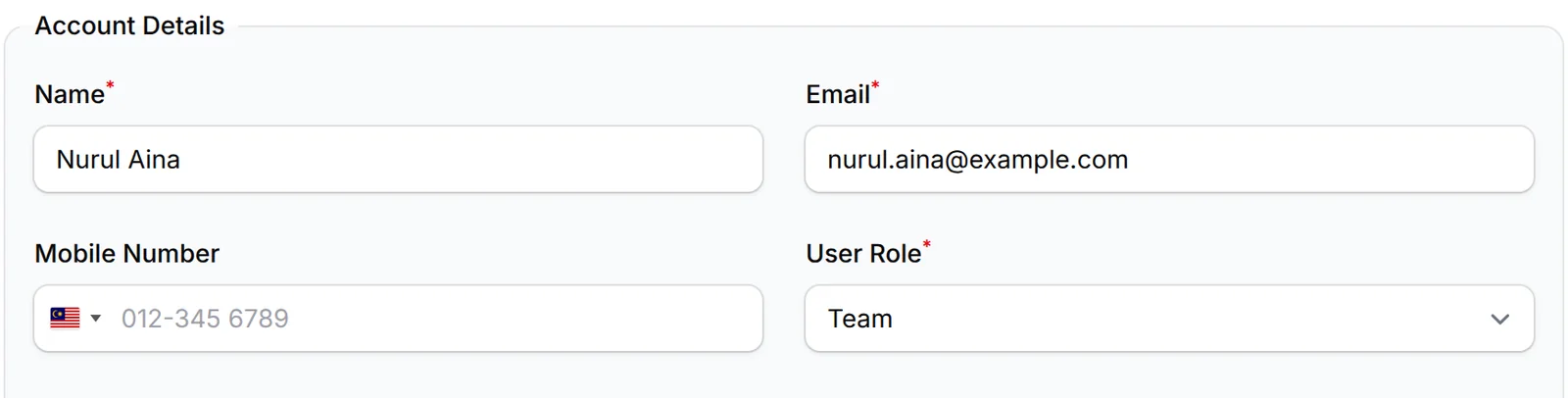
Fill in a name and email, then choose a User Role: Admin for full access, Team for the permissions you pick, or Crew Event for check-in only. Set a password of at least 8 characters and hand over the login yourself, as BCL sends no invitation email. Changing a role later takes one Edit.
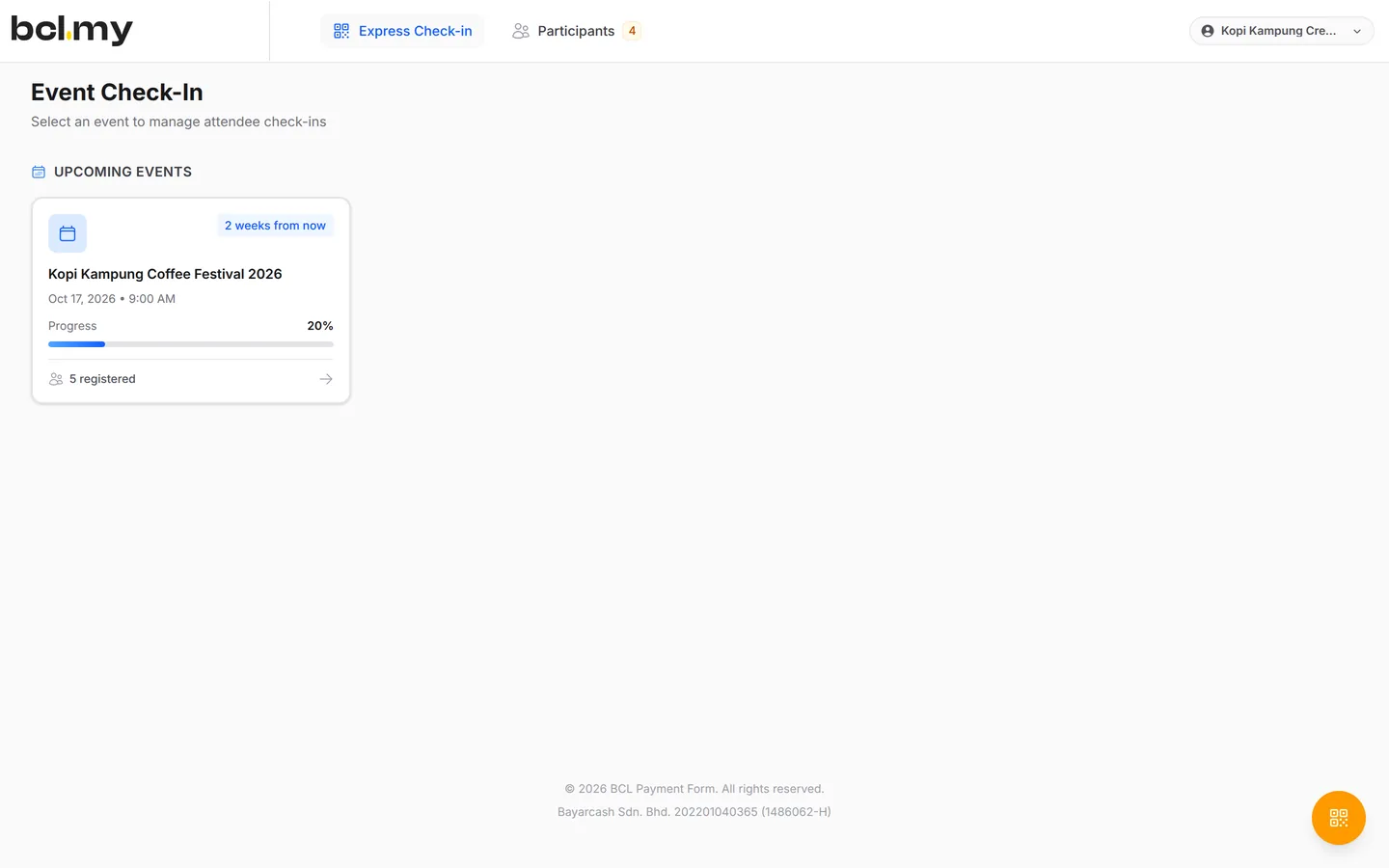
Door crew for one event
A Crew Event member's top bar holds just two items, Express Check-in and Participants, limited to the events you allow. You can bring in temporary door help for one event without opening up your takings or customer list. Each check-in records who did it, so you know which helper let each guest in.
What you can do
Choose from three roles, decide who sees whose data, send Magic Login links and require two-factor sign-in.
Three roles
Admin (full access), Team (permissions you choose) and Crew Event (check-in only, limited to Allowed Events for Check-In).
Portals per staff
Give a Team member one or more Bayarcash Portal Keys and set Require Portal Key, so each counter's sales match its own portal.
Own or shared data
Team members see only their own data unless you turn on Show data for all team members in Team Profile.
Magic Login
Send a sign-in link that needs no password, with an expiry of 1 to 365 days. Regenerate or delete it any time.
Two-factor sign-in
The 2FA column on Team Members shows who has turned it on.
Change or remove
Edit details, change a password, or remove a login. Members with live transactions are kept so your records stay complete.
Used by
A counter-only cashier, expiring door crew links, a bookings receptionist and a fee clerk show the range.
Jobs it helps with
Good to know
Limits to check before you build, and the add-ons that some features need.
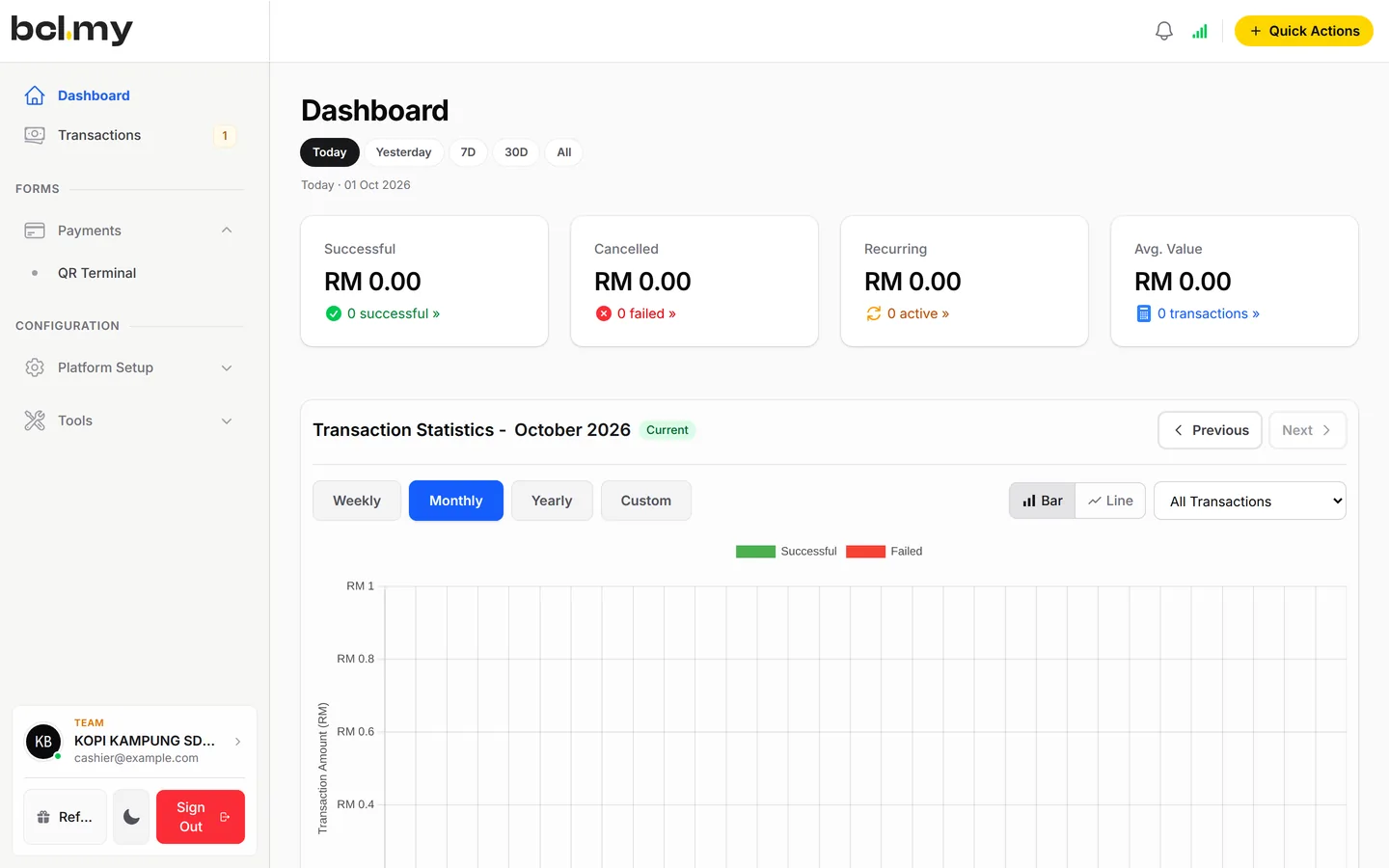
- There is no Cashier role. Use Team with Can View Transactions.
- Team and payment settings are for Admins only. A Team member cannot open Customers, Team Profile or Bayarcash keys.
- BCL does not send an invitation email. Give the person their email and password, or a magic login link.
- A member with live transactions cannot be removed, nor can the team owner or your own login.
- A magic login link works more than once until it expires. Treat it like a password.
Questions owners ask
Picking a role, hidden staff transactions, a cashier setup and password-free links, made simple.
Which role should I give my staff?
Admin for someone who runs the whole account, Team for staff who handle only what you allow, and Crew Event for people who only check in event attendees.
My staff cannot see transactions made by other staff. Why?
Members with the Team role see only their own data by default. Turn on Show data for all team members in Team Profile and click Save Settings.
Is there a Cashier role?
No. Add your cashier as Team and turn on only Can View Transactions. That one permission opens QR Terminal for them.
Can I send staff a link instead of a password?
Yes. On their row in Team Members, choose Magic Login, click Generate magic login link, pick how long it works and send it in a private message.
What is BCL, and how does it work with Bayarcash?
BCL is a no-code selling platform for Malaysian small businesses: you build payment forms, payment links, tickets and bookings, share one link and see every sale. Bayarcash is the payment gateway behind it: it collects the payment and pays it out to your bank, minus its fee. To take real payments you need an approved Bayarcash merchant account.
Can I start before my Bayarcash account is approved?
Yes. New accounts start in Test Mode, so you can build and try your forms first. Test payments go to the Bayarcash sandbox and nothing is charged. Your forms keep working after you connect Bayarcash.
Step-by-step guides
Set it up with the help pages on docs.bcl.my.
Ready when you are.
Set up your first form today and try it out. When you are ready for real payments, connect Bayarcash and the same form goes live.