
Sell tickets online. Check in by QR.
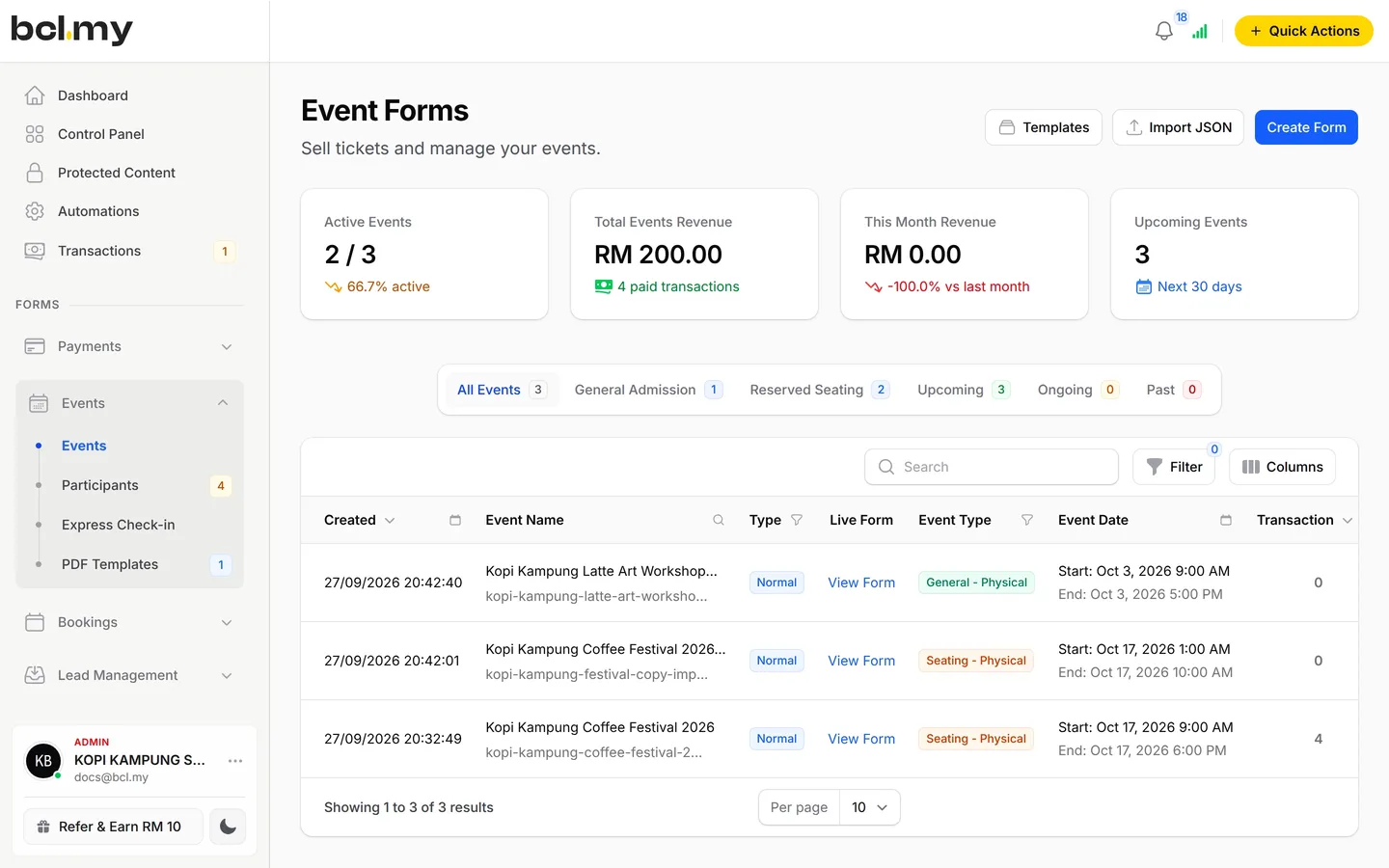
Put your tickets on one page. Buyers pay, get a ticket by email and walk in with a QR code.
Trusted by these companies












































Before & after BCL
Leave behind a slip-filled spreadsheet and a door queue for a paid guest list and quick QR scans.
How it works
From the first ticket type to the first guest through the door, in five moves.
What you can do
Choose standard tickets or numbered seats, sell tables, manage crew and issue certificates afterwards.
Up to 20 ticket types
Early Bird, Normal, VIP, each with its own price and stock. Pricing Schedules change a price between two dates.
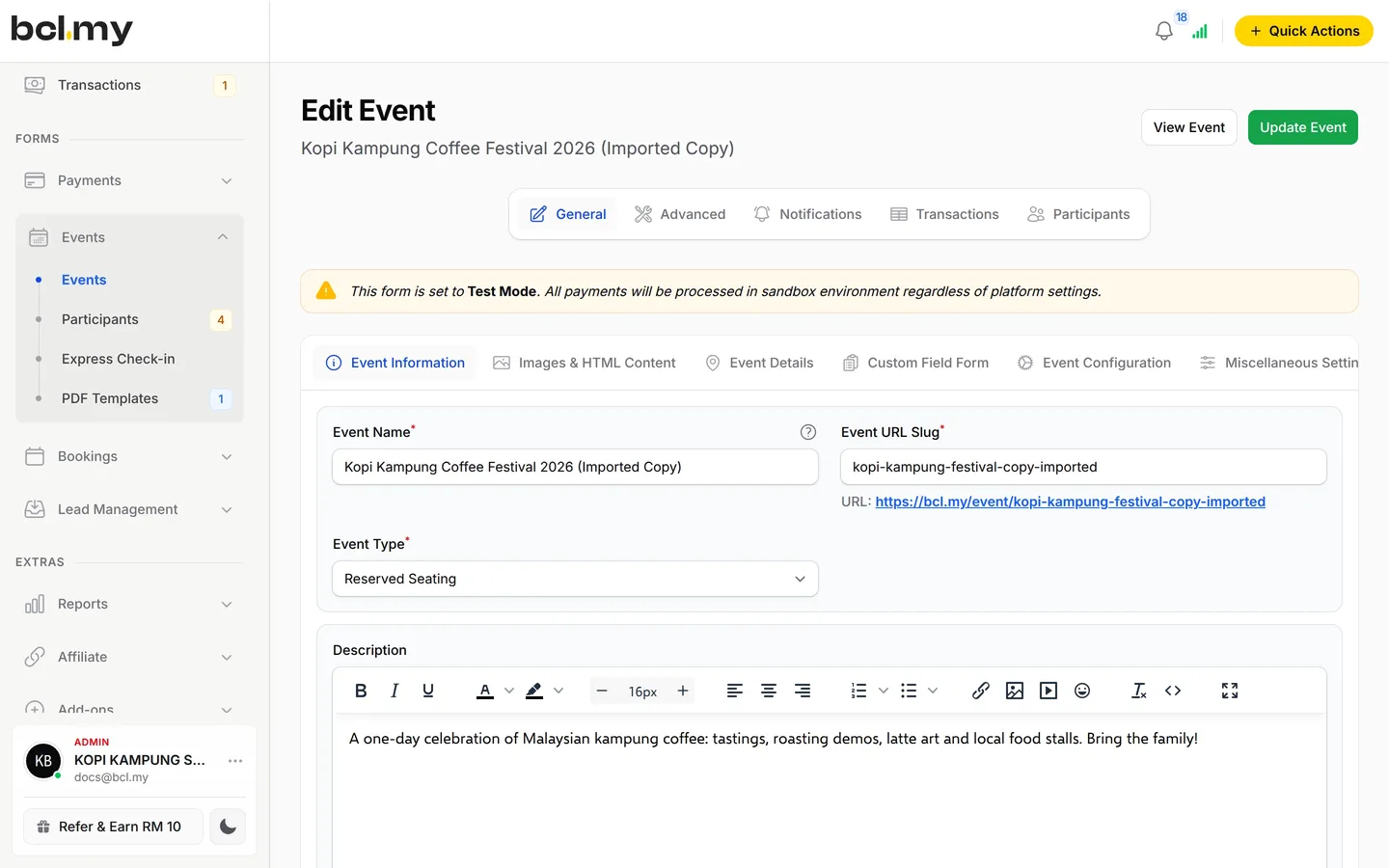
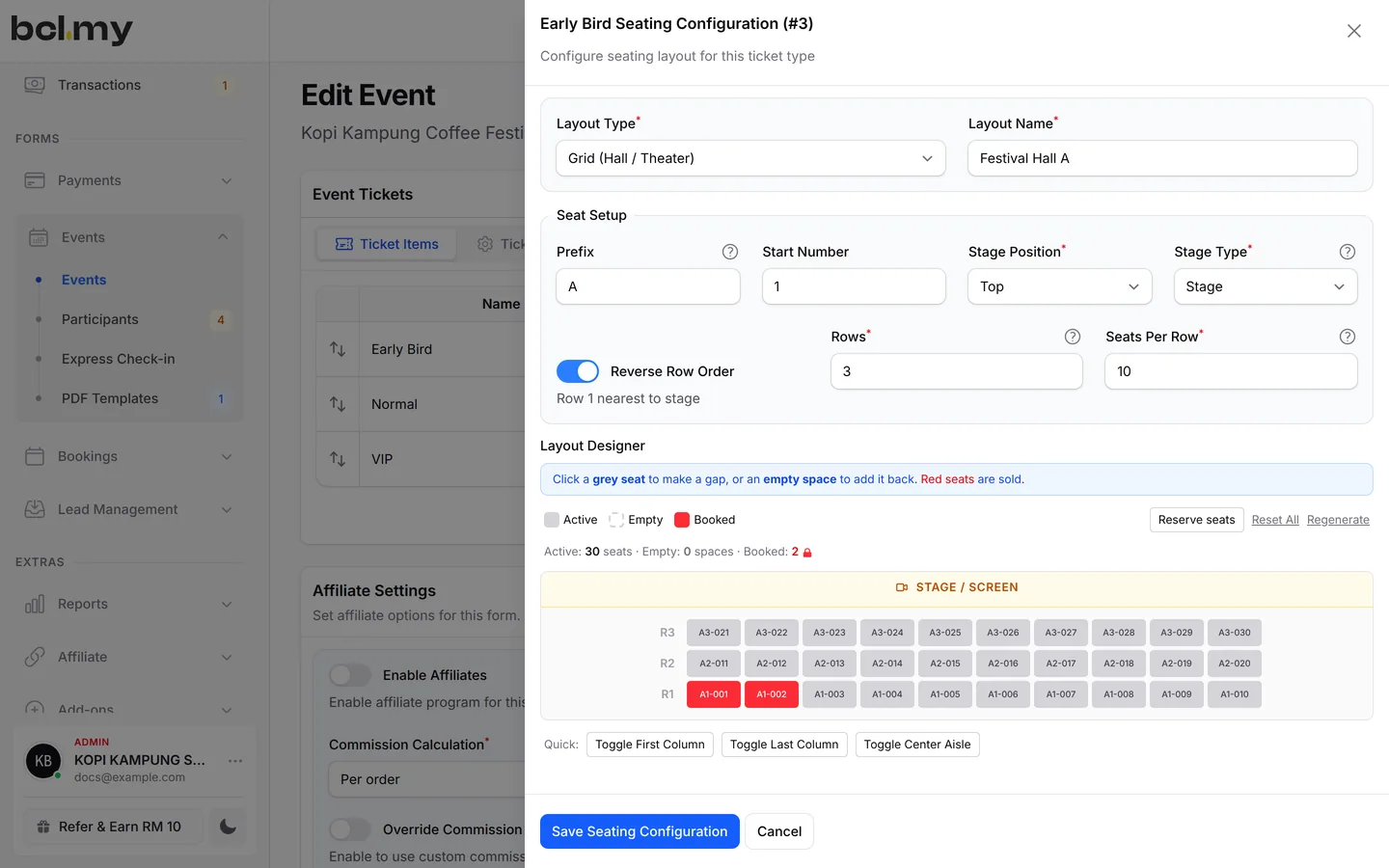
Standard Ticket or Reserved Seating
First come first served, or numbered seats on a seat plan for dinners and concerts.
Tables & groups
Sell one ticket for a table of 10 with Group bundle and Seats Per Ticket, or collect each guest's details with Attendees Per Ticket.
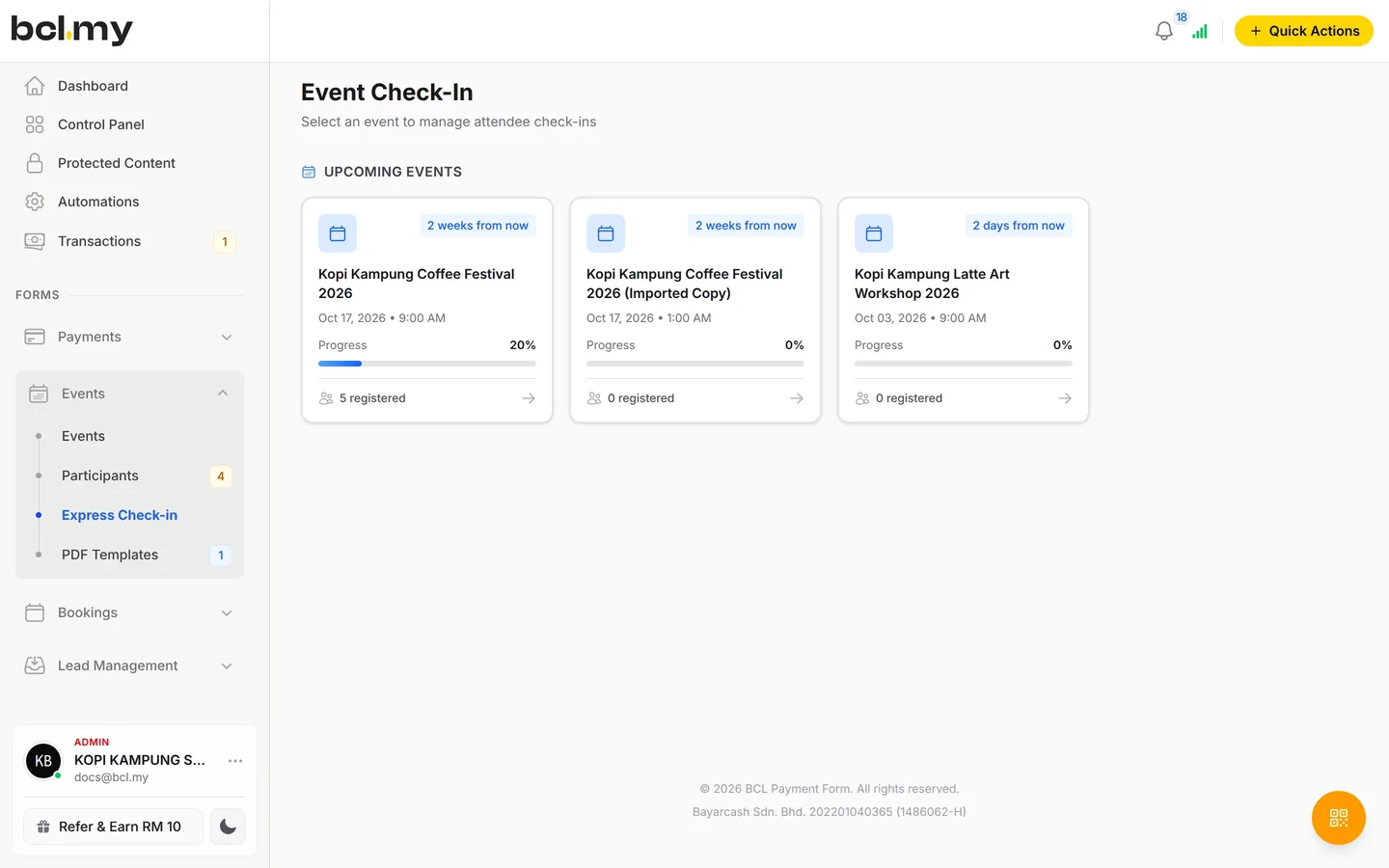
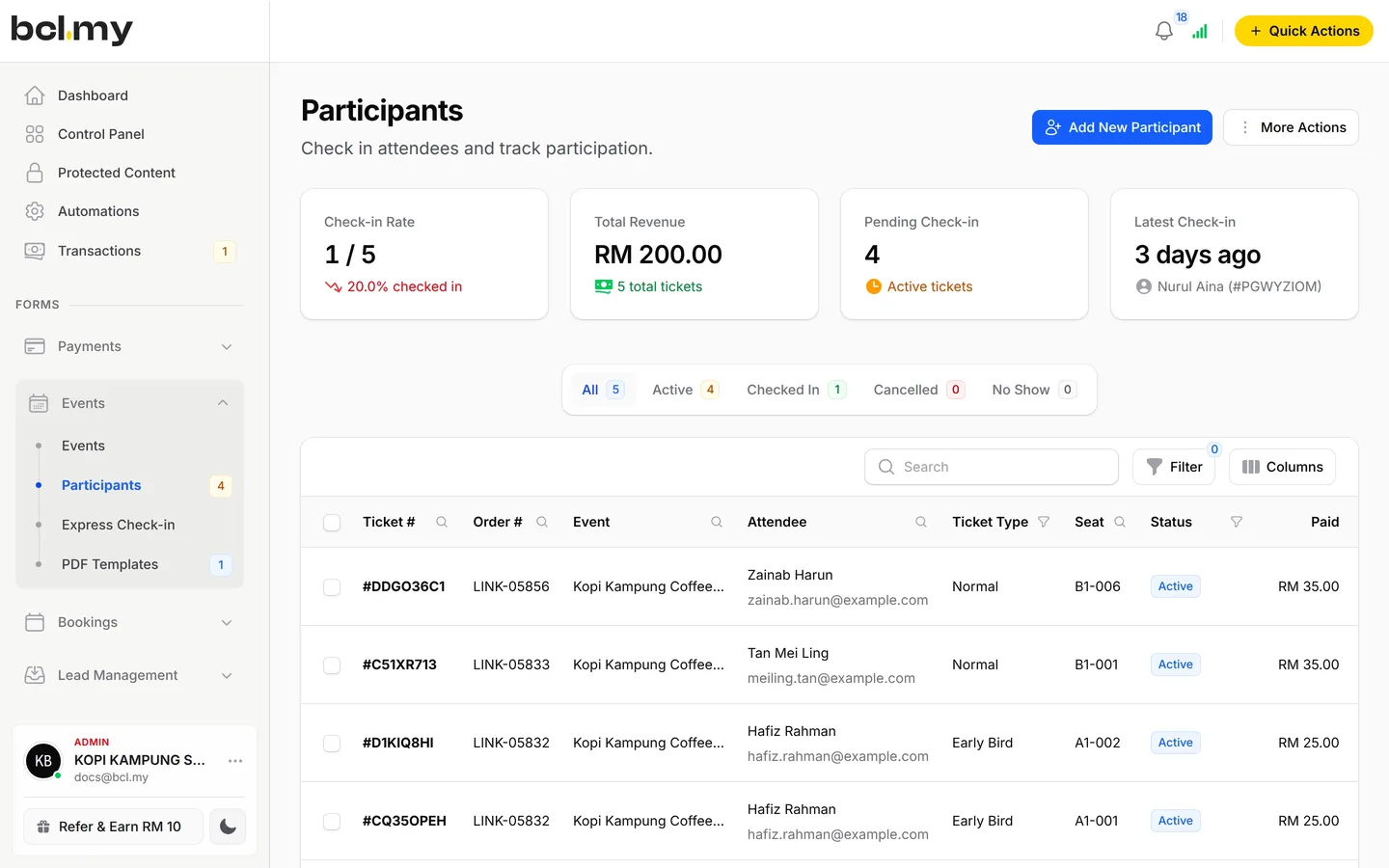
Express Check-in
Scan ticket QR codes on a phone or tablet. A ticket that is scanned twice shows Already Checked In.
Participants & crew
See every attendee, and add your helpers with the Crew Event role.
Templates & certificates
Start from a workshop, gala dinner or charity run template, and give attendees a certificate.
Who uses it
Fun runs, charity dinners, tuition open days and gym challenges all sell seats through it.
How your customers pay
Buyers pay by FPX or DuitNow QR as standard. Cards, e-wallets and Buy Now Pay Later appear once Bayarcash switches them on. Money goes through Bayarcash to your bank and BCL records the sale.
Event Management is an add-on, paid monthly or yearly and invoiced, never auto-charged. Real payments need an approved Bayarcash account.
- Standard

- Cards

- E-wallets



- Buy Now, Pay Later



- Cross-border QR




Good to know
Limits to check before you build, and the add-ons that some features need.
- Needs the Event Management add-on.
- One event form has one start and one end date. For sessions on different days, make one event per session.
- An event sells up to 20 ticket types.
- Registration closes when the event starts, unless you turn on Allow Late Registration.
- In a Reserved Seating event, a ticket type without a seat plan is not shown on the page.
- There is no refund button. Refund outside BCL, then cancel the ticket.
See it live
Opens a live example page. Please do not pay.
- Event Larian Santai Bukit Indah Fun Run 2026 Tickets and a Family Pack Kelab Larian Bukit Indah, a running club organising a year-end fun run Open the example
- Event Malam Apresiasi 2026: Annual Dinner Reserved Seating with tables of 10 Persatuan Peniaga Kecil Taman Melati, a traders' association holding its annual dinner Open the example
Questions owners ask
Seat picking, selling at the door once the event has started, and how tickets reach guests.
Can guests choose their own seats?
Yes. Set Event Type to Reserved Seating, then click Seating on each ticket type to draw its seat plan. Buyers pick numbered seats when they buy.
Can I keep selling at the door after the event starts?
Yes. Edit the event, open Event Configuration and turn on Allow Late Registration. Without it, registration closes when the event starts.
How do guests get their tickets?
After payment each buyer gets an email with a PDF ticket that has a QR code for check-in.
Do I need an add-on?
Not to start. Payment forms, payment links, coupons and transactions need no add-on. Add-ons unlock Event Management, Lead Forms, OTP-Protected Content, COD & Manual Transfer, LHDN E-Invoice and Courier Integration. Each is monthly or yearly, renewals are invoiced (never auto-charged), and you can cancel yourself.
How do refunds work?
BCL has no refund button. Return the money to your customer yourself (for example by bank transfer), then cancel the order in BCL so your records match.
Step-by-step guides
Set it up with the help pages on docs.bcl.my.
Ready when you are.
Set up your first form today and try it out. When you are ready for real payments, connect Bayarcash and the same form goes live.