
Take orders. Know who paid.
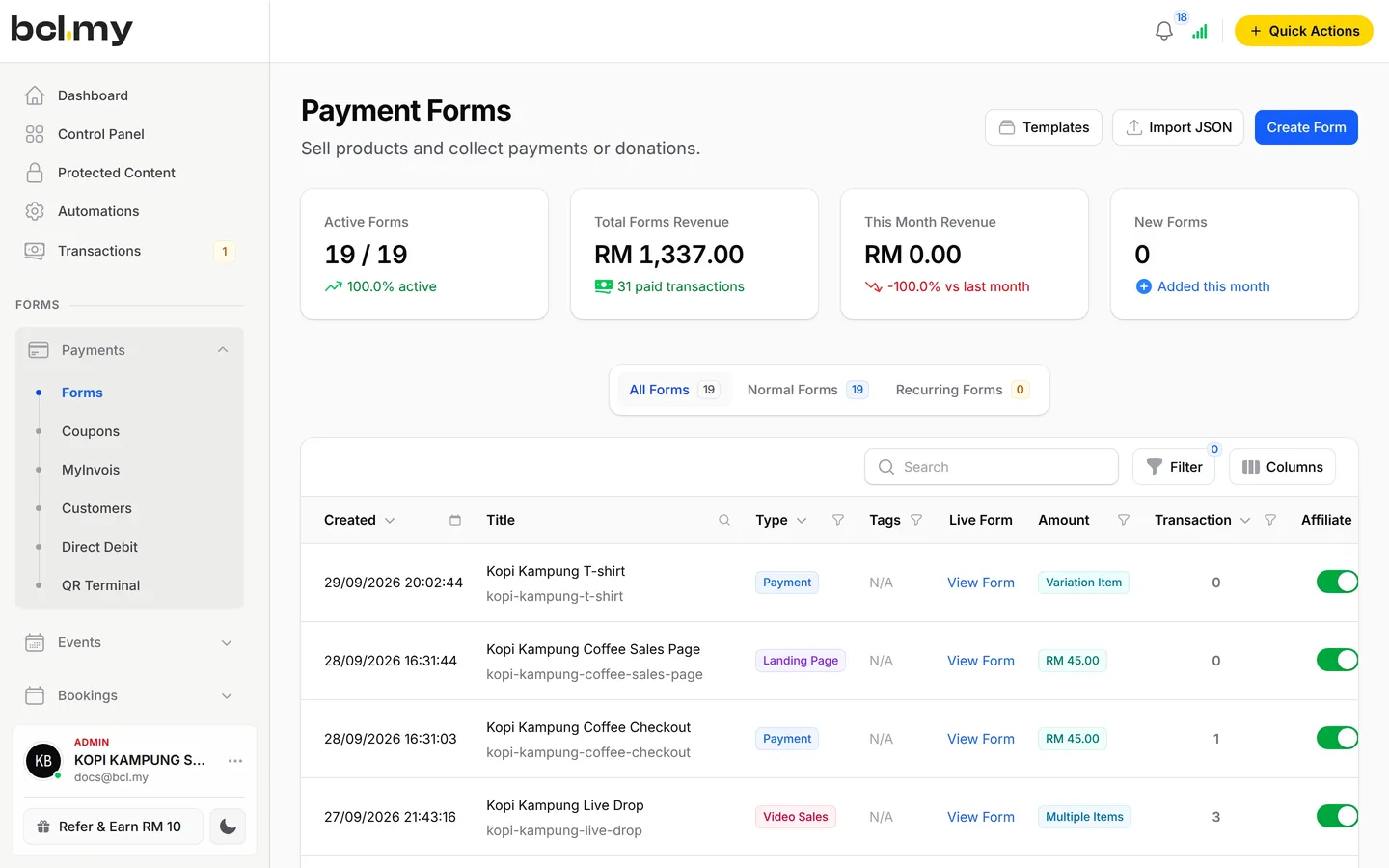
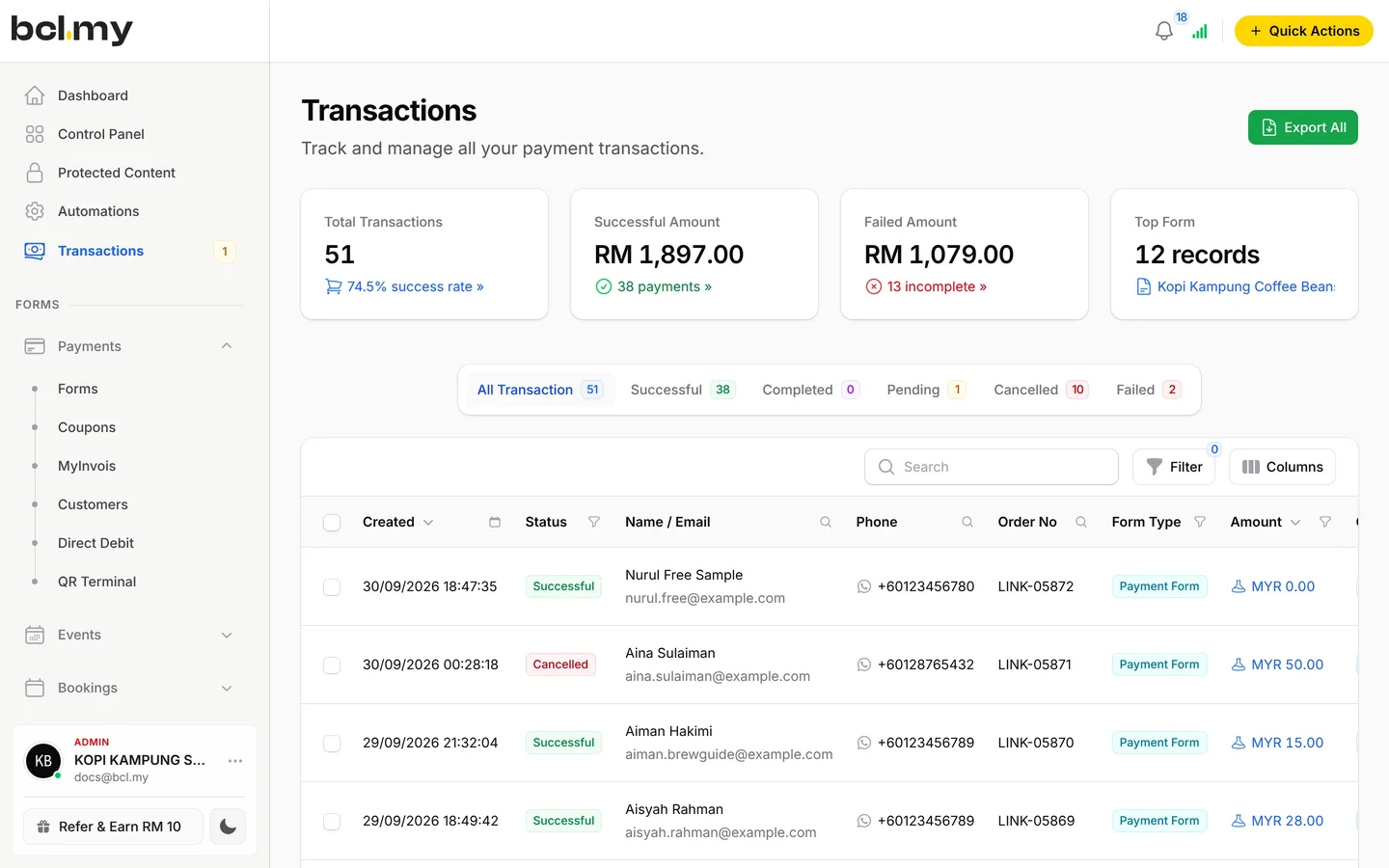
Put your products on one form. Customers pick, pay and get a receipt. You stop checking transfer slips.
Trusted by these companies











































Before & after BCL
See how slip-checking and notebook orders turn into a paid list that also guards your stock.
How it works
List products, cap stock, choose payment methods and share one form, then paid orders start arriving.
What you can do
Sell up to 50 products with sizes, colours, stock limits, coupons and shipping on a single form.
Up to 50 products on one form
Multiple Items takes up to 50 items, each with its own price and stock.
Sizes & colours
Items with Variations gives you 6 items with up to 15 options each. Every option has its own price and stock.
Stock that protects the last unit
Stock is taken when the buyer clicks to pay, so two people cannot pay for the last one. It returns if the payment fails.
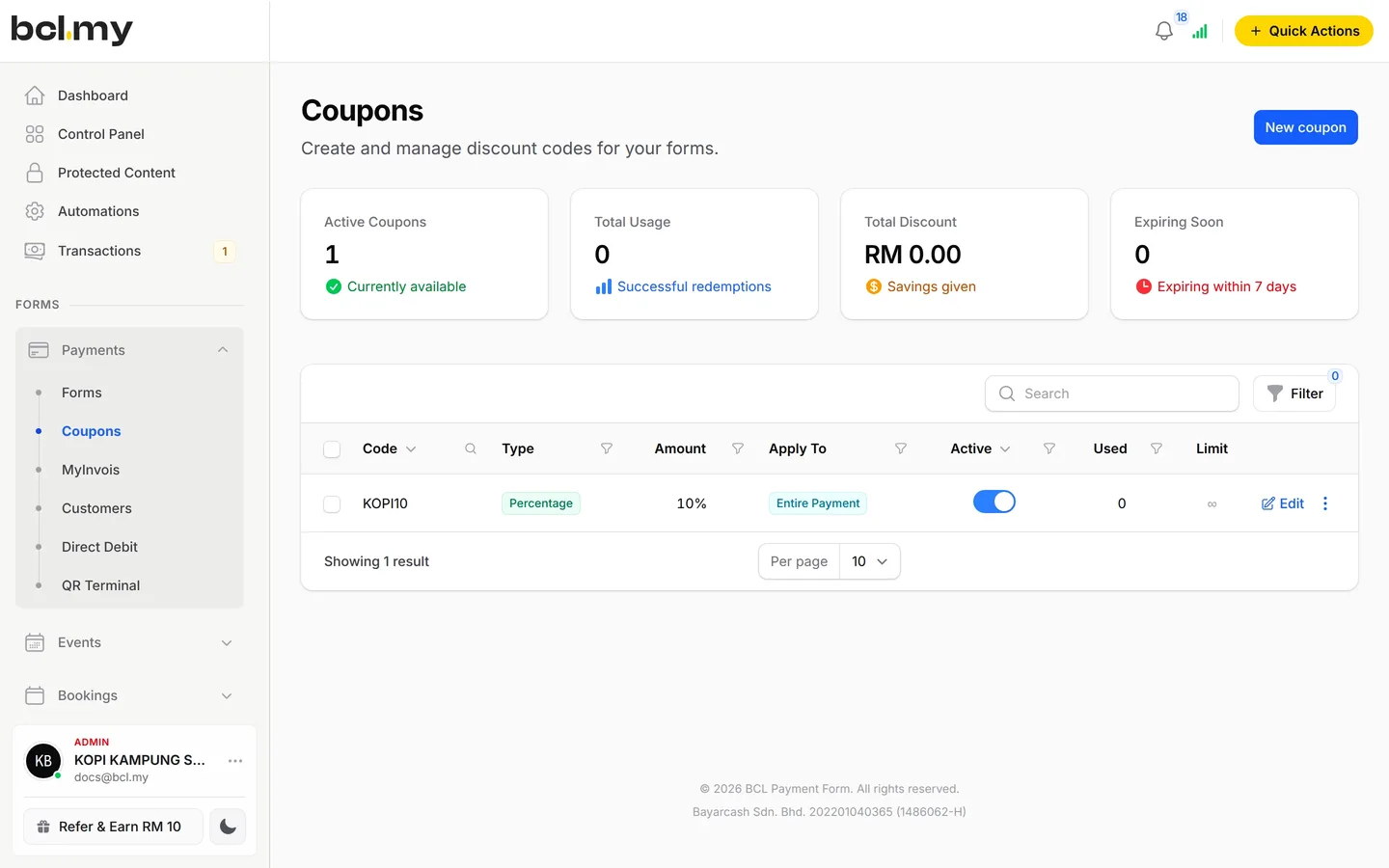
Coupons
Discount codes limited by items, spend, uses or dates.
Shipping rates
Flat, by weight or quantity, a Sabah and Sarawak rate, or free shipping above an amount you set.
Cash on Delivery & bank transfer
Let buyers choose COD or manual transfer. The order waits for your approval.
Who uses it
Home bakers with Raya cut-offs and boutiques selling one design in many sizes rely on it.
How your customers pay
FPX and DuitNow QR come as standard. Cards, e-wallets and Buy Now Pay Later appear once Bayarcash switches them on for your account.
Money goes through Bayarcash to your bank and BCL records the sale. Real payments need an approved Bayarcash account, but you can build in Test Mode first. COD & Manual Transfer is an add-on.
- Standard

- Cards

- E-wallets



- Buy Now, Pay Later



- Cross-border QR



- COD & bank transfer Cash on DeliveryManual Bank Transfer
Good to know
Limits to check before you build, and the add-ons that some features need.
- One form holds up to 50 items, or 6 items with up to 15 options each under Items with Variations.
- Do not make a Size item and a Colour item: BCL charges each pick as its own line. Make one item per design with the sizes as options.
- There is no refund button. Refund outside BCL, then cancel the order.
- COD & Manual Transfer needs the add-on.
See it live
Opens a live example page. Please do not pay.
- Payment form Raya Cookies by Dapur Kak Mawar Multiple Items, stock and a coupon Dapur Kak Mawar, a home baker selling Raya cookies by the jar Open the example
- Payment form Baju Kurung Batik Collection Items with Variations Butik Seri Tenun, a batik baju kurung boutique Open the example
- Payment form Frozen Durian Delivered: Kebun Durian Pak Long Shipping rates by weight Kebun Durian Pak Long, a durian orchard shipping frozen durian Open the example
Questions owners ask
Sizes on one shirt, sold-out items, payment methods, refunds and add-ons, cleared up here.
Can I sell the same shirt in different sizes?
Yes. Use Items with Variations. Make one item per design and put the sizes in as options. Each option has its own price and stock, and a customer can buy several designs in one payment.
What happens when an item sells out?
Buyers see Out of Stock and cannot pick the item. If a payment fails or is cancelled, the units go back into stock.
Which payment methods can my customers use?
FPX online banking, DuitNow QR and cross-border QR (Singapore, Indonesia, Thailand and China) come as standard. Cards (Visa and Mastercard), e-wallets (Touch 'n Go eWallet, Boost, GrabPay) and Buy Now Pay Later (SPayLater, PayLater by Grab, Boost PayFlex) appear once Bayarcash switches them on for your account. Prices are in RM.
How do refunds work?
BCL has no refund button. Return the money to your customer yourself (for example by bank transfer), then cancel the order in BCL so your records match.
Do I need an add-on?
Not to start. Payment forms, payment links, coupons and transactions need no add-on. Add-ons unlock Event Management, Lead Forms, OTP-Protected Content, COD & Manual Transfer, LHDN E-Invoice and Courier Integration. Each is monthly or yearly, renewals are invoiced (never auto-charged), and you can cancel yourself.
Step-by-step guides
Set it up with the help pages on docs.bcl.my.
Ready when you are.
Set up your first form today and try it out. When you are ready for real payments, connect Bayarcash and the same form goes live.