
One row per order, always up to date.
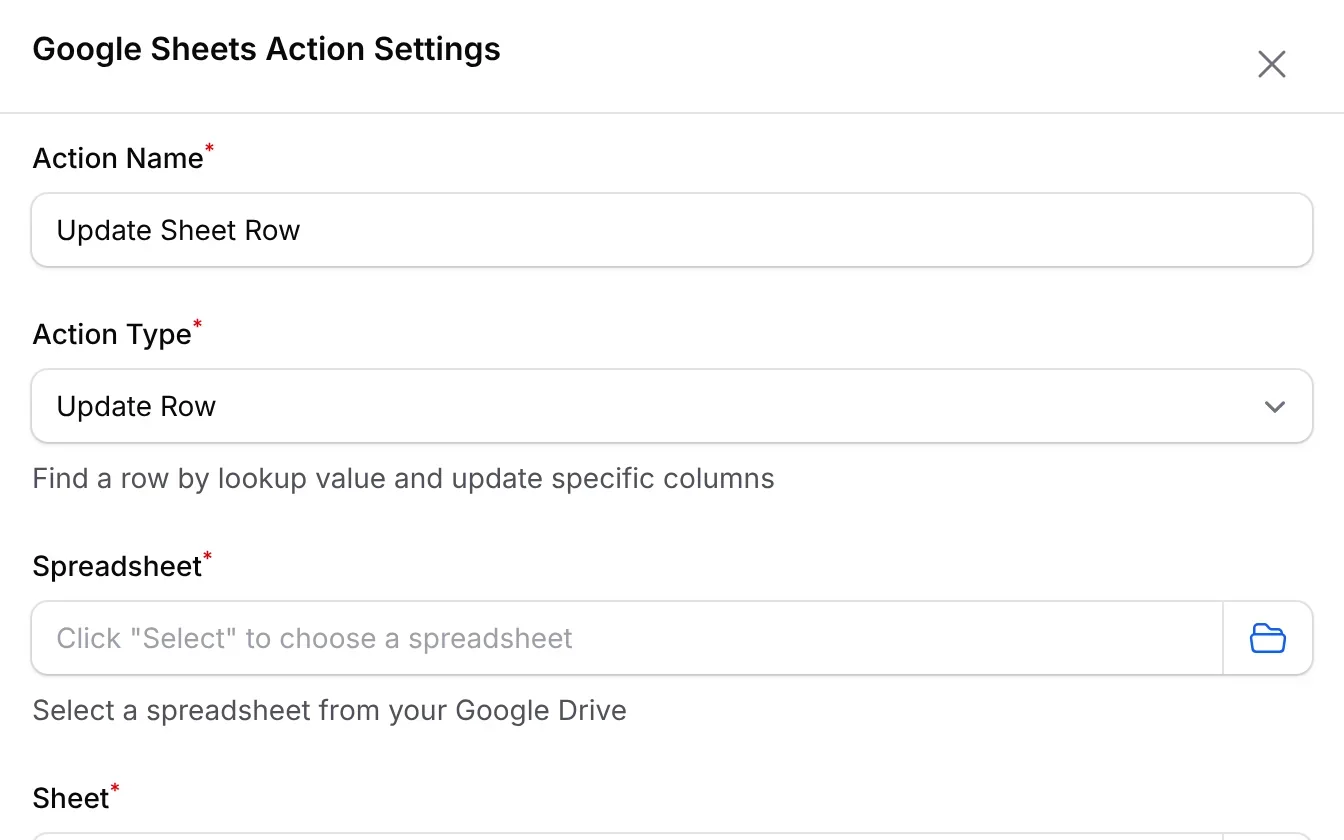
When a payment's status changes, BCL finds that order's row in your Google Sheet by its order number and updates the status. Your sheet shows where every order stands.
Trusted by these companies













































How it runs
Two nodes: the Status Changed trigger, joined to an Update Sheet Row action.
Writes to Google Sheets. Connect your Google account under Platform Setup, then Integrations, then Google before you switch it on.
Make it yours in 4 steps
Four steps from the template to a sheet that tracks every status.
Who it suits
For teams who follow orders in a shared sheet.
- Packing and fulfilment teams
- Order trackers
- Finance staff
- Pre-order sellers
Start from a ready-made automation
14 templates under Automations → Templates. One click creates the automation, switched off, so you can set your forms and messages before you turn it on.
- After payment Thank You Email on Payment Transaction SuccessSend email EmailSee the template
- After payment Wabot Payment Notification Transaction SuccessWhatsApp with receipt link WabotSee the template
- After payment SMS Niaga Payment + Subscriber Transaction SuccessSMSAdd to SMS Niaga group SMS NiagaSee the template
- After payment VIP Customer Detection Transaction SuccessCondition on amountTwo emails EmailSee the template
- After payment Google Sheets Transaction Log Transaction SuccessAdd a row Google SheetsSee the template
- Failed or cancelled Google Sheets Update Status Transaction Status ChangedUpdate the row Google SheetsSee the template
- Failed or cancelled Incomplete Payment Follow-up Transaction Status ChangedFailed emailCancelled email EmailSee the template
- Failed or cancelled Abandoned Cart WhatsApp Transaction Status ChangedWait 1 hourWhatsApp reminder WhatsAppSee the template
- Leads Webhook on Lead Submission Form SubmittedHTTP Request Your own systemSee the template
- Leads Lead Form SMS Notification Form SubmittedSMS to you SMSSee the template
- Events Event Registration Reminder Participant CreatedWait 1 dayWhatsApp reminder WabotSee the template
- Events WasapBot Event Reminder Participant CreatedWait 1 dayReminder WasapbotSee the template
- Events Certificate Wabot Notification Certificate GeneratedWhatsApp the link WabotSee the template
- Affiliates Welcome New Affiliate Affiliate JoinedWelcome emailAdd to Mail Niaga list Email + Mail NiagaSee the template
Questions owners ask
What owners ask about the Google Sheets Update Status template.
What if the order is not in the sheet yet?
Turn on Create row if not found in the action. BCL then adds a new row for orders it cannot find.
Can I use it together with the Transaction Log template?
Yes. The Transaction Log adds a row for each successful payment, and this one keeps a row per order current as its status changes.
Rows stopped updating. Where do I look?
Open the automation and click Overview. A disconnected Google account shows up there as a failed action.
Step-by-step guides
Set it up with the help pages on docs.bcl.my.
Ready when you are.
Set up your first form today and try it out. When you are ready for real payments, connect Bayarcash and the same form goes live.